RASC Calgary Centre - Visiting Our SiteBy: Larry McNishPage last updated March 16, 2011
1. Seeing What's New 1.1 The What's New Link If you are a regular visitor to our website, then you are probably interested in what's new since the last time you visited. On the Home Page there is a section of links near the top with a What's New link specifically for you: 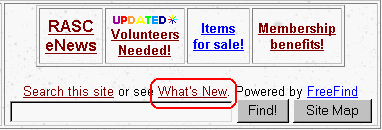 Each Sunday night our site is scanned by the FreeFind service and a web page is created that shows which web pages changed or were added on which dates. Clicking the What's New link takes you to that web page. As long as you do not erase your internet browser's "cache" (or if you don't know what this means) you get an additional benefit - namely, that pages you have visited are one colour and those you have not visited are another colour as shown in the example below. If you regularly erase your internet browser's "cache", all the page titles are the same colour, but at least they are sorted in order so you can pick a date and review new or changed pages from that point on (upwards). 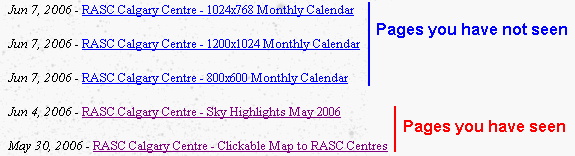 Note: Each page is listed only once, regardless of how many times it has changed. For instance, the Home Page changes every few days as I add or change links or content, but it will show up only one time. Therefore this is not a complete chronological history of changes to every page on the entire site. (I have a page like that - but it's really boring.) Note: Since this list is only updated weekly you should still know how to find something (see the next section). ^ top 1.2 Article Markers If you just scroll down the Home Page, you will see the following markers beside different articles:
^ top 2. Finding Something Specific 2.1 Home Page Table of Contents  The Home Page contains a Table of Contents section that has links to the 13 sections of the Home Page as well as a few popular links to other site pages: Since most of the links are to sections of the Home Page itself, they will be of one colour, and the others will be a different colour if you have not visited them. Clicking these links takes you to the appropriate section or page. Use the "Back" button (or hit backspace) to return to the Table of Contents after you visit one of these items. Note: - Some web sites use a complex system of menus down the left or across the top with sections and subsections appearing and disappearing as you move your mouse over them to provide their "Contents" feature. We do not do this for many reasons:
2.2 Other Pages Tables of Contents Other pages (like this one) often contain their own Table of Contents (if they are lengthy). This is done:
2.3 Home Page Notice Section 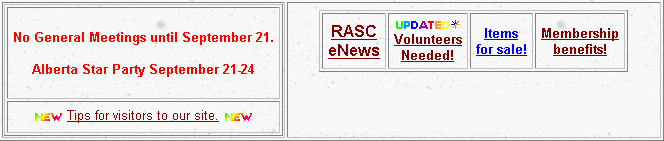 This section is reserved for several important items, namely:
2.4 Finding Something On A Lengthy Web Page If you know that something you are looking for is on a particularly long page but you can't easily find it, use the browser's "Find" feature to search that page for the specific word or phrase. Click on Edit, then click on Find (on This Page)... 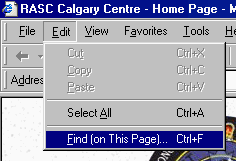 This opens a "Find dialog box": 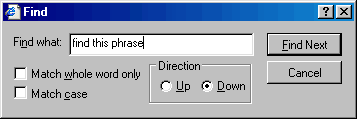
 F Fi.e. hold down either Ctrl key on the keyboard while typing the letter "F". Note: - in Internet Explorer, the search starts at the top of the page and proceeds downwards. The browser "remembers" where you are on the page at all times. If you change the search phrase, or close the Find box and then re-open it, Internet Explorer will search from the last point downwards. If the item was actually above where you were on the page it may not be found. There are two ways to resolve this:
2.5 Finding Which Pages Have Something About The Item You Are Looking For If you are looking for something on the Calgary Centre's web site but have no idea which page it is on, the Home Page has a section of links near the top with a Search this site facility specifically for you: 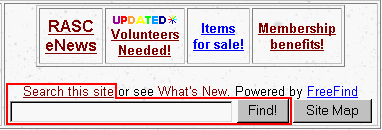
Scroll down the list of pages shown on the search results for a page that most likely matches what you are looking for, then click on the page link to go directly to that page. Note: - your search may produce more than one page of results. Check the top and bottom of the Search page for the following hints:
Once you are on a selected page, you can browse through it, or use the technique for "2.4 Finding Something On A Lengthy Web Page" above. Using Google (or another web search engine)  You can search our site using Google by specifying our site address as shown above. Note: - We have no control over how often Google or other search engines scan our site or whether they scan all the pages or not. I recommend the FreeFind Search facility we provide to ensure you get the latest search and the latest page references. ^ top 2.6 Site Map 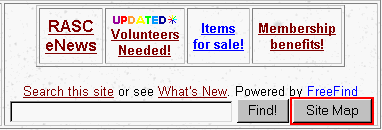 If you are just interested in a list of the titles of every page in our site to see if there is something that you missed, then click on Site Map. You will be presented with several pages of links - one for each page (in alphabetical order) - that is maintained whenever FreeFind scans or site. Use the techniques mentioned above (clicking, backspacing, and Finding) to look through the pages. ^ top 3. Printing Something OK - you found a page with something really important on it and you want to print this out for posterity. If you want to print the entire page:
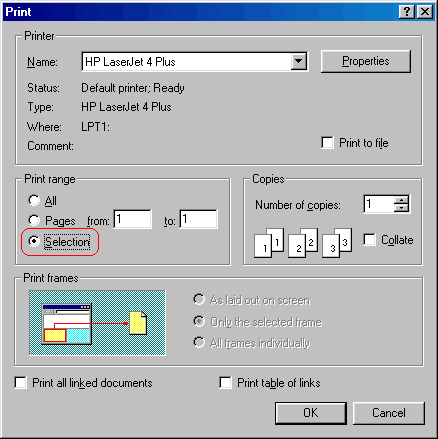 ^ top |
 - This is a new item on the page
 - This item has been updated recently
 - at the top shows the count of matches and the count being displayed on the page
 - at the bottom shows if other pages are available
 , or
, or
 to print the right-hand page of information without printing the navigation bar on the left.